

SoliCall improves audio quality in any type of voice call. We offer robust noise cancelling algorithms that are capable of attenuating any unwanted sound from phone calls. We cancel both non-human sounds like car horn and voices of other people that are talking in the background. In addition to noise reduction, our technology also includes a robust echo cancellation that can be deployed both in the client side or in the network. Some of our customers use our plug-and-play products while others embed our technology in their software/devices.
Yes. SoliCall offers several plug-and-play products that can be seamlessly installed in most communication environments. For more information visit our
There are two type of noise reduction filters. PNR that uses human acoustic profile to attenuate non-human sounds. RNR that uses a reference to cancel voices of people that are talking around you. For more details, the following post elaborates on the different types of noise.
Yes. Using SoliCall's unique server side/network AEC, you can cancel echo in your network. SoliCall's unique echo cancellation removes echo even with a very long delay. You can use SoliCall to remove echo generated on mobile devices with low-end CPU, echo generated on intercoms, echo coming from any remote network etc.
The selection is not always a clear cut and sometimes more than one product is suitable. For more details and guidelines, start
Noise cancelling microphone is a term used to describe software or hardware that cancels the ambient noise that is picked up by the microphone. The common usage for a noise cancelling microphone is to attenuate ambient noise during phone calls. An example for such a product is SoliCall Pro.
In most cases, you can modify the microphone of your softphone to use SoliCall's microphone - check out the integration page for more details. In the rare case that you are unable to force your softphone to use SoliCall's microphone, please follow the below two steps:

- Open SoliCall Pro and navigate to "Tools->Option..." and select the specific name of your microphone or “Any Available Device”.
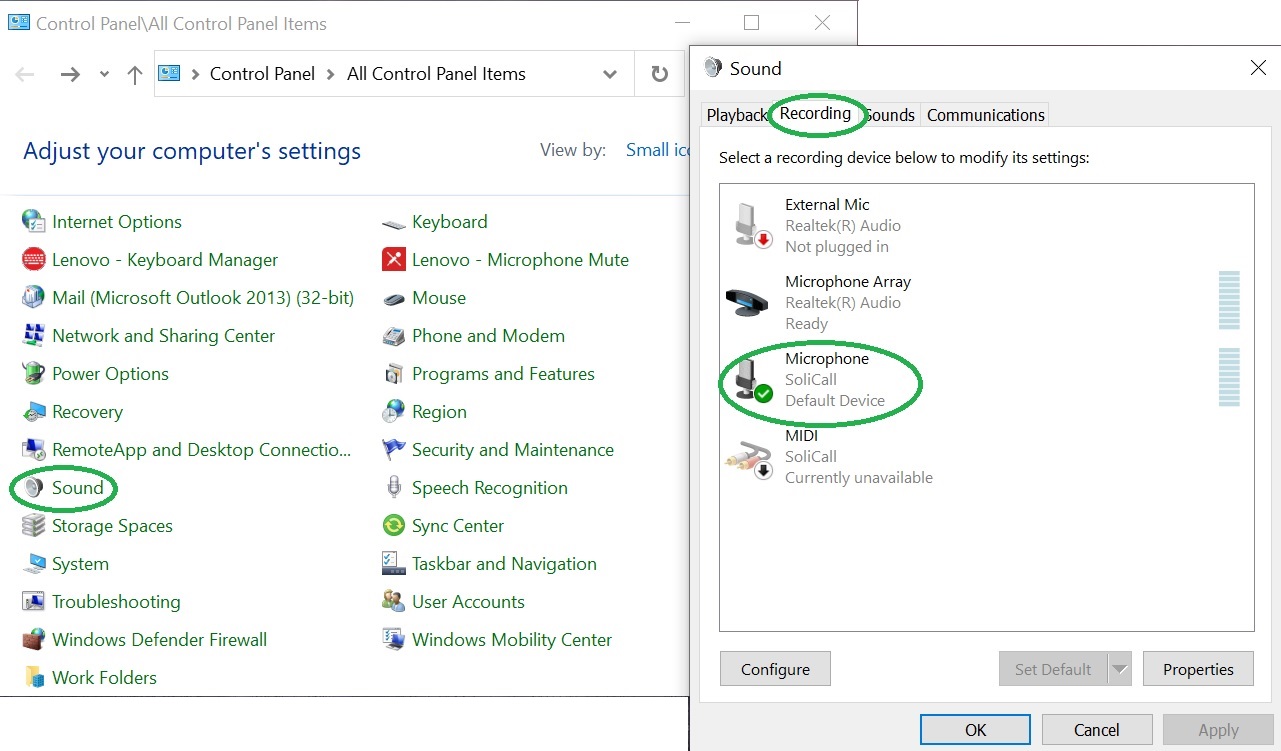
- Open the sound control panel of Windows and change the default microphone of Windows to be SoliCall:
Usually this means that you are using an old version that is no longer supported. Please download and install the latest version of SoliCall Pro
You can uninstall SoliCall Pro like any other software on your PC. Open add/remove programs on windows settings, locate SoliCall Pro and uninstall it. In rare cases, you would be requested to reboot the PC in order to completely remove SoliCall's microhpone and speaker from the sound system.
During installation, SoliCall Pro is installing a virtual audio device. On some rare scenarios this operation will trigger an error message from Windows saying something like "a digitally signed driver is required". This message means that your windows version is unable to read/identify our digitally signed driver certificate. Go to windows update and make sure the latest security updates are installed on your computer.
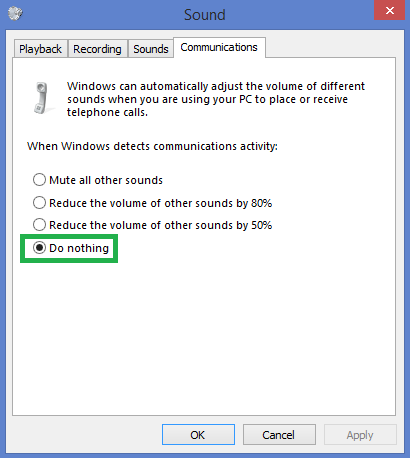
This can happen due to automatic gain control of Windows. Please open the "sound" menu of Windows and navigate to the "communication" tab. In this tab, select the "Do nothing" option.
If you see your microphone in *** ON *** state (i.e. open) even when not during a call, then most probably it is constantly open by "Host Process for Windows Services". To resolve this, left-click the microphone icon in the system tray and select sound settings. In the sound setting window turn off the main switch under "Allow apps to access your microphone", and then turn it back on again.
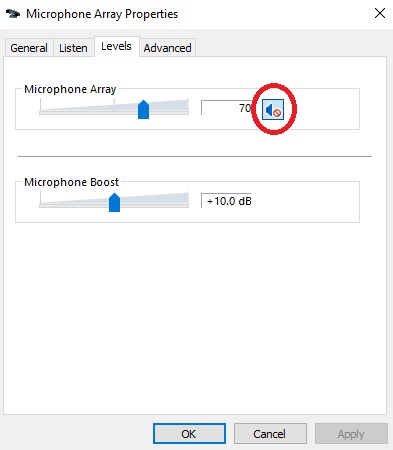
Please open your microphone properties and make sure your microphone is not muted.
- Go the search windows and type "control panel". Inside the control panel select "sound".
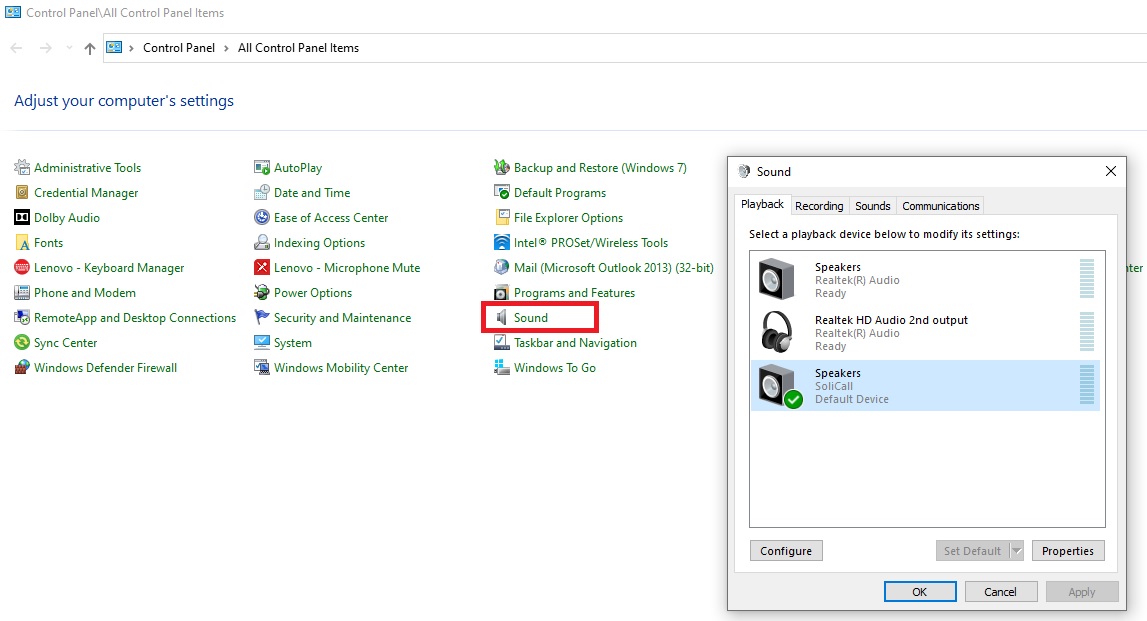
- Right click on the Speaker you want to use (e.g. your headset) and "Set as Default Device"
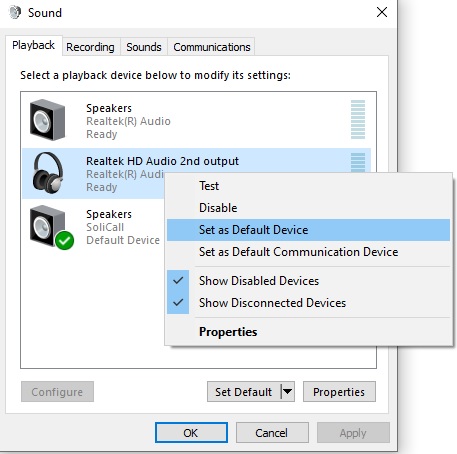
- Right click again on the same desired Speaker (e.g. your headset) and "Set as Default Communication Device"
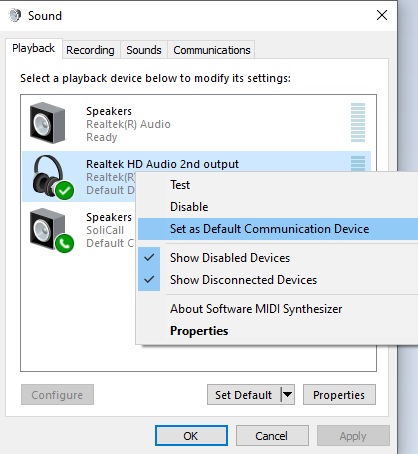
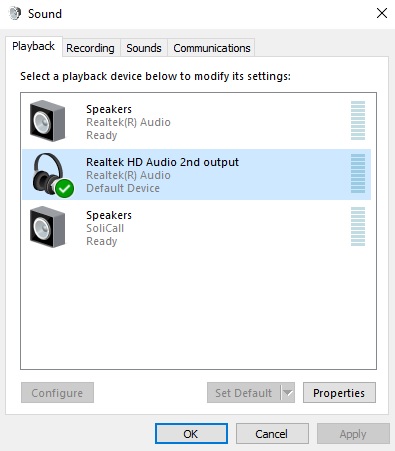
- Once done, there should be no green icon next to SoliCall's Speakers.
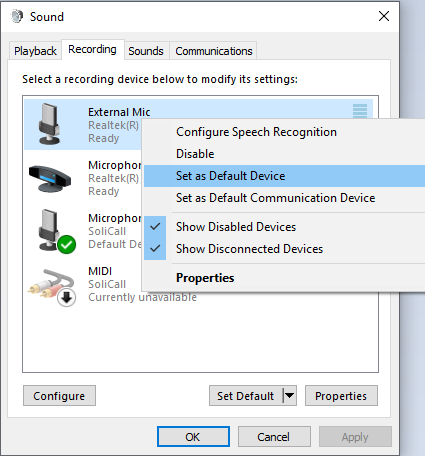
- Repeat the last steps also for the microphone, in the "Recording" tab:
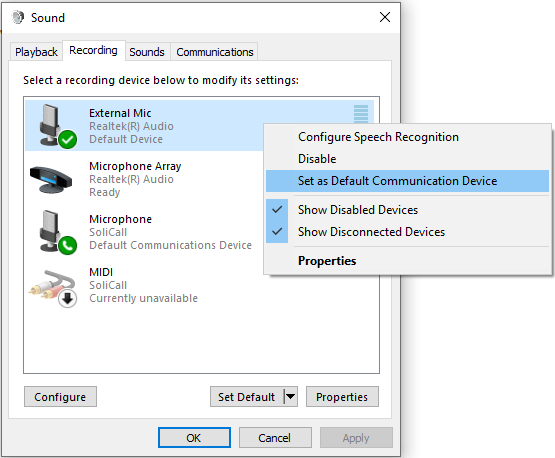
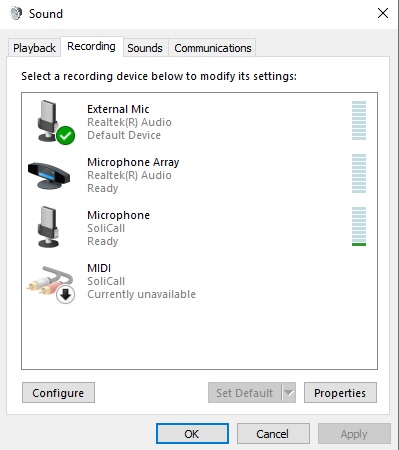
Make sure the option of "Echo Cancellation" is enabled. You can increase the aggressiveness of echo cancellation.
In addition, try to turn the volume of your microphone down (by using windows control panel ). Also, make sure that the speaker volume is set to allow you to hear the other person conveniently (not too low, but not too high either).
When you hear echo, the problem usually originates at the far end.
We recommend that you ask the other party to:
(1) Set his/her speakers’ volume to a comfortable level (not too high). Also, they should try to keep their speakers away from the microphone.
(2) The other party should either install SoliCall as well (since SoliCall has built-in algorithms that reduce echo) or use headsets.
(3) Activate the option of "Incoming Echo Cancellation" in SoliCall Pro.
Make sure that SoliCall Pro is running. An easy way to tell is if the icon appears on your task bar.
During the call, SoliCall Pro creates two files, one with a speaker extension (*.spk) and the other with a microphone extension (*.mic). When the call ends, SoliCall merges them into a single wave file. This operation may take a few minutes, depending on the length of the call.
That's because you listen to it in mono. Make sure you have two speakers plugged-in and turned-on, and that your settings allow you to hear audio in stereo. Another option is to change the Recording Format to Mono.
Because of software patents we cannot distribute an MP3 encoding software.
When this warning message appears it mean that SoliCall cannot perform RNR because there is no dedicated microphone for RNR. If you encounter this problem, please verify that you have a dedicated microphone available for RNR and it is not used as your primary microphone. If you do not have such a dedicated microphone available on your PC, then disable RNR via Tools->Advanced Options.
When this warning message appears it mean that SoliCall cannot perform echo cancellation because different formats are used for the microphone and speakers. Usually this is caused by different applications that simultaneously use the audio device. If you encounter this problem, please close all other applications that might use the audio device for playback and/or recording and make sure only your VoIP application is running.
This question relates to a special case in which the Windows "Switch user" operation (a.k.a. "fast user switching") was used and it kept both the old user and new user logged-in. By default, SoliCall Pro does not handle this scenario because SoliCall Pro is a special application that is connected to the virtual audio device driver and therefore only one instance of SoliCall Pro can be simultaneously executed on a single computer. We recommend to avoid such cases by simply using the Windows operation "Log Off" before a new user logs-in. If this is not possible in your organization and you need to allow using "fast user switching" then please contact us to provide you with our solution.
Few experimental flags were added to Chrome. One of them might cause the microphone volume to be automatically reduced during call. In order to fix this you need to disable automatic volume adjustments by navigating to chrome://flags/#enable-webrtc-allow-input-volume-adjustment and disabling this flag.

There could be few reasons causing this error message. It can be that the license file you provided does not exists or can not be read. Alternatively the license file you are using is not valid for the version of SoliCall Pro you are using or it had expired. For more information, check the log file C:\Program Files (x86)\SoliCall\log\errLog.
When you are asked to provide us with debug recording please do the following:
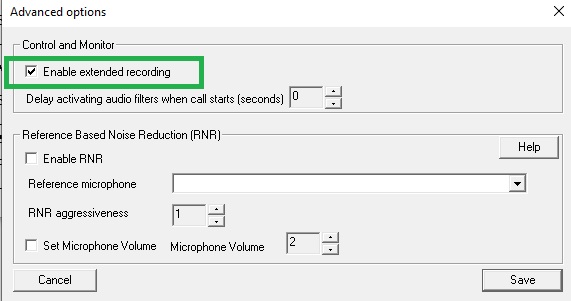
- Open "Tools->Advanced options..." and enable extended recording.
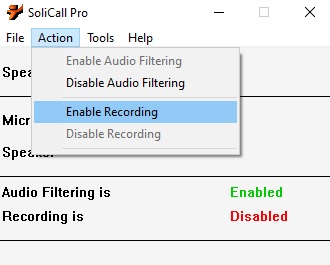
- Activate recording via "Action->Enable Recording"
- Make few short test calls that demonstrate the issue you would like us to review.
- Send us all the files that are generated in the directory "C:\Program Files (x86)\SoliCall\recordings". There should be about 10 files generated per test call.
- Send us the file "C:\Program Files (x86)\SoliCall\log\errLog"
Yes, SoliCall Connect was designed to cancel any ambient noise including background human voices.
Yes, SoliCall Connect provides extensive dashboard that allows you to monitor call quality. The dashboard includes statistics on live calls and closed calls. It also presents the Noise Map of your center.
When using SoliCall Connect, the call duration is updated using RTCP packets that are sent from the SoliCall Pro client to the PBXMate server. If the dashboard constantly shows zero call duration, this means that RTCP packets sent from the SoliCall Pro clients are blocked before reaching the PBXMate server. You need to make sure no firewall is blocking these UDP packets.
This warning message can appear when running SoliCall Connect product. The warning message means that SoliCall Pro client is unable to get packets (SIP or RTCP) sent from the PBXMate server. This message will usually appear few seconds after the call starts. If you get this message, make sure no firewall in the network or on the client PC is blocking this communication. In addition, if your PBXMate server is on external IP and your clients are behind NAT, edit the configuration file of PBXMate and set UpdateRTCPIPPortFromIncomingRTCPIPPort=1