My Voice, Only. |
||


Integrating SoliCall With VoIP Programs
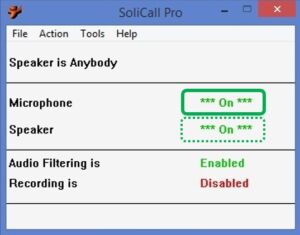
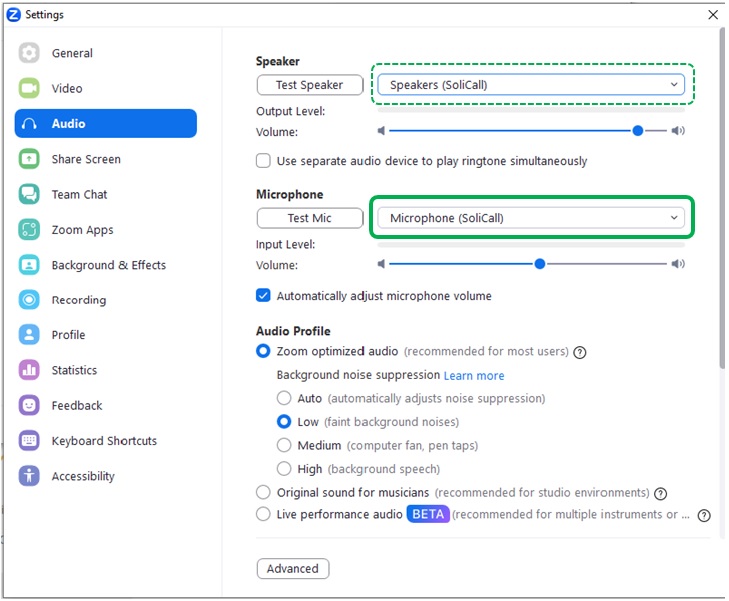
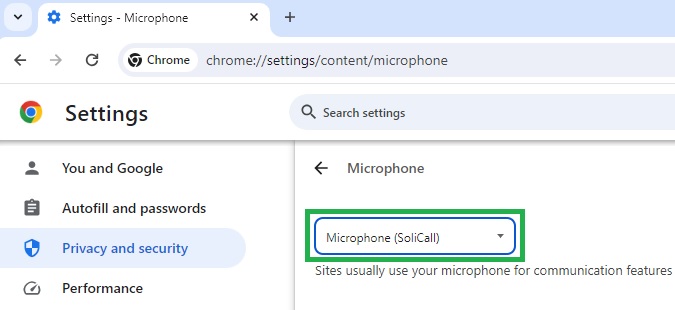
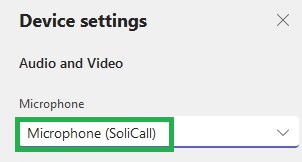
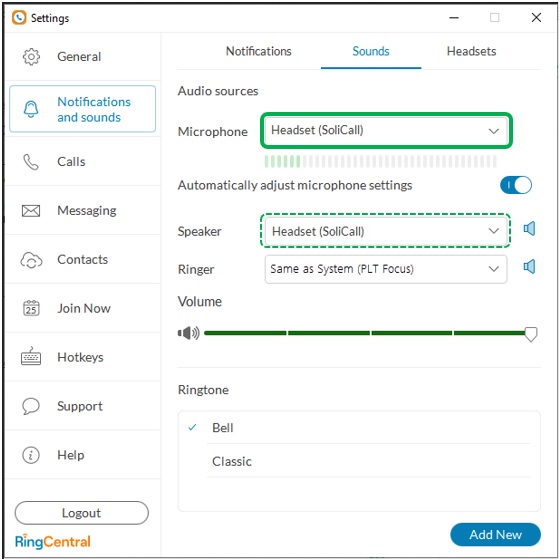
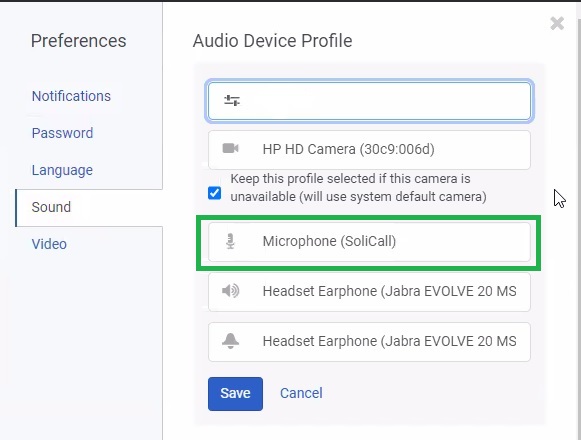
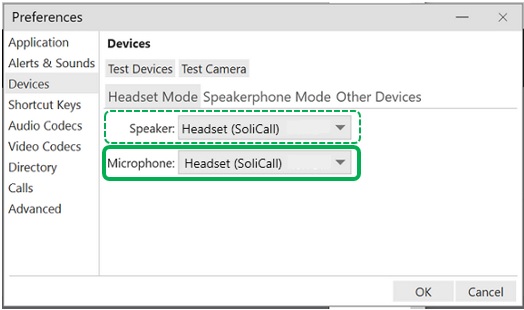
Choose the Sound Devices you are using with your VoIP program. Once you have done so, or if you don't have more than one option in the drop down lists (Audio In & Audio Out), you can go on and configure your VoIP program as described below: Skype To set up SoliCall, go to Skype menu: Tools --> Options --> Sound Devices (or Audio Settings if you have the latest version of Skype). You'll see the dialog below:
Set the Audio In (Microphone) and the Audio Out (Speakers) to "SoliCall Audio Device" and click 'Save' Yahoo! Messenger To set up SoliCall, go to Yahoo! Messenger menu: Messenger --> Preferences --> Calling & Audio. You'll see the dialog below:
Just set the Microphone and the Speakers to "SoliCall Audio Device", then click Apply and OK. Google Talk To set up SoliCall for Google Talk, click the Settings link. In the Settings dialog select 'Audio' on the left side and you will see the dialog below:
On the Input - microphone or headset drop down list select "SoliCall Audio Device". On the Output - speakers or headset, under the subsection Calls, select "SoliCall Audio Device". Then click OK. Windows Live Messenger / MSN Messenger To set up SoliCall for MSN Messenger, go to the menu: Tools --> Audio and Video Setup (for Version 7.5 and higher) or Audio Tuning Wizard. Click 'Next' until you see the dialog below:
On the Step 1: Speaker Setup drop down list select "SoliCall Audio Device", then do the same on the Step 2: Microphone Setup drop down list. Click 'Next' until setup is finished. Note: igonre the Speaker/Microphone sliders, they can be adjusted in the main window of SoliCall. OtherTo set up SoliCall for other VoIP programs, go to the program's main window, look for the audio settings (usually through settings/tools-options/preferences) and change the Audio In (microphone) and the Audio Out (speakers) to SoliCall Audio Device. |